Pitwall for Mac
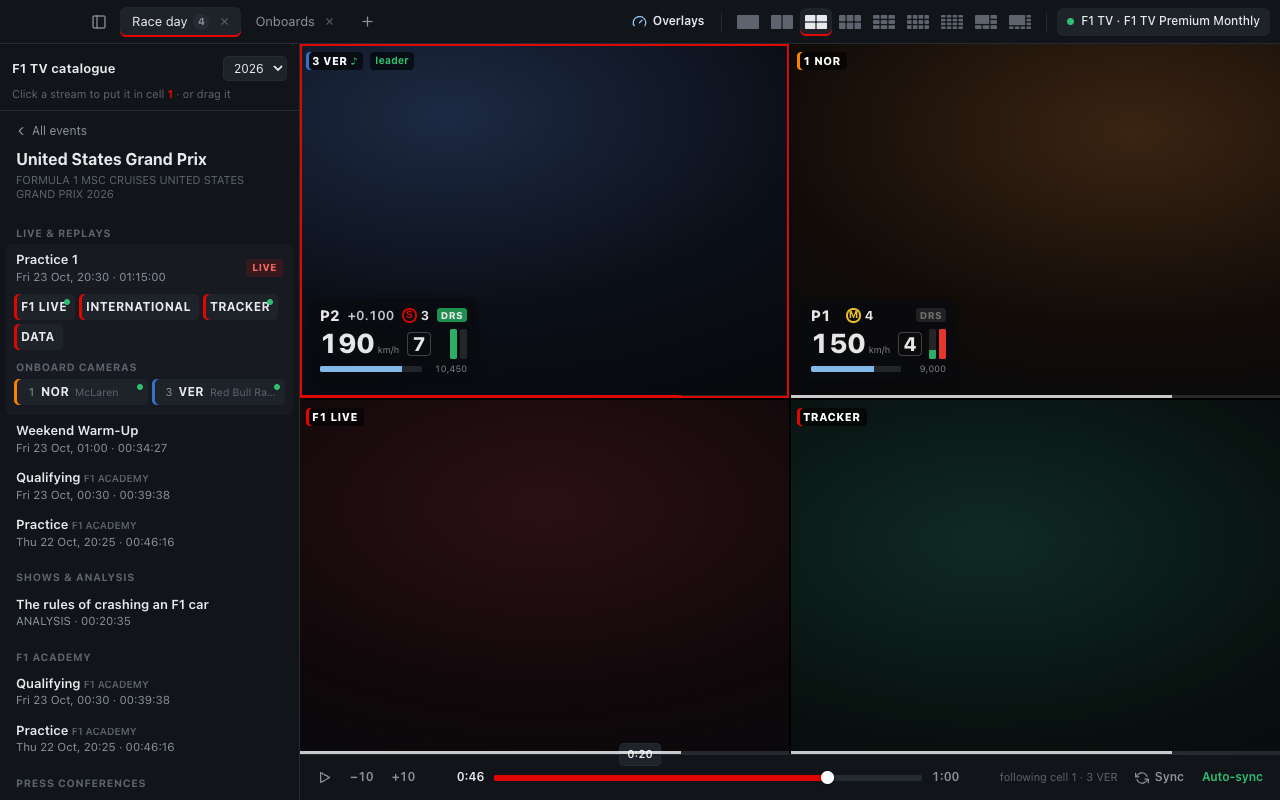
Watch several of your F1 TV streams in one window: the race feed, onboard cameras and data channels side by side, kept in sync, with live telemetry on top.
What it does
- Grids and tabs. From one to sixteen streams per tab, including layouts with one big main feed, and as many tabs as you like.
- Every F1 TV channel. Race feed, onboard cameras, data and tracker channels, live and replays.
- Auto-sync. Cameras of one session stay within a fraction of a second of each other.
- Telemetry overlays. Speed, gear, RPM, throttle, brake, DRS, position, tyres and last lap on onboard cameras.
- Live timing and race control. A timing board and race control messages beside the video, in step with it.
- Lap comparison. Two laps on top of each other: speed, pedals, gear, RPM and where the time goes — or the lap being driven now, live, against a reference.
- Second monitor. Drag any camera out of the window to watch it full screen elsewhere.
- Updates itself. New versions download in the background, are checked against our signature and install on restart.
- Keyboard shortcuts. Almost everything has a key; press ? for the full list.
- Your own links. Paste an .m3u8, .mpd, .mp4 or YouTube link into any cell.
You need your own F1 TV subscription with live and onboard streams (F1 TV Pro or Premium). You sign in to F1 in your own browser, where your saved passwords are, and confirm a code Pitwall shows you.
Live timing and race control
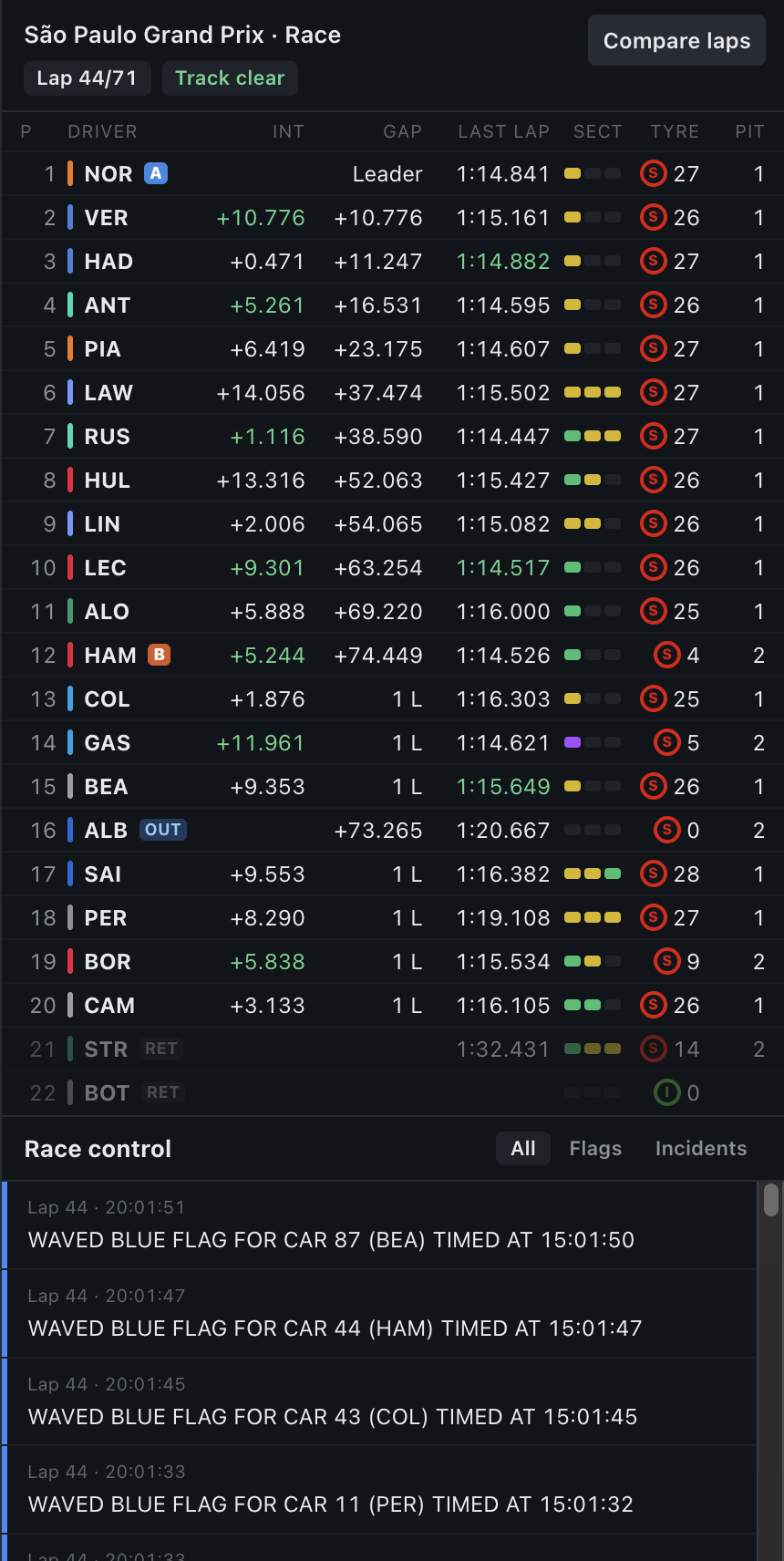
Press Timing (or I) for a timing board beside the video: position, interval and gap to the leader, last lap and sectors, tyres and pit stops, with PIT, OUT, RET and KO, plus the lap count and the track status — yellow flag, safety car, VSC or red flag.
Below it, every race control message: flags, safety cars, DRS, investigations and penalties, colour-coded, with a filter for flags or incidents only.
It follows the moment on screen. Rewind and the board rewinds with you; in a replay nothing from later in the session shows up early, so it never spoils a race. Drivers whose cameras are in your grid are highlighted.
Want the whole window for video? The button in the board's header (or Shift+I) moves timing into its own window — onto a second screen, say — and Pitwall remembers where you put it.
Compare laps
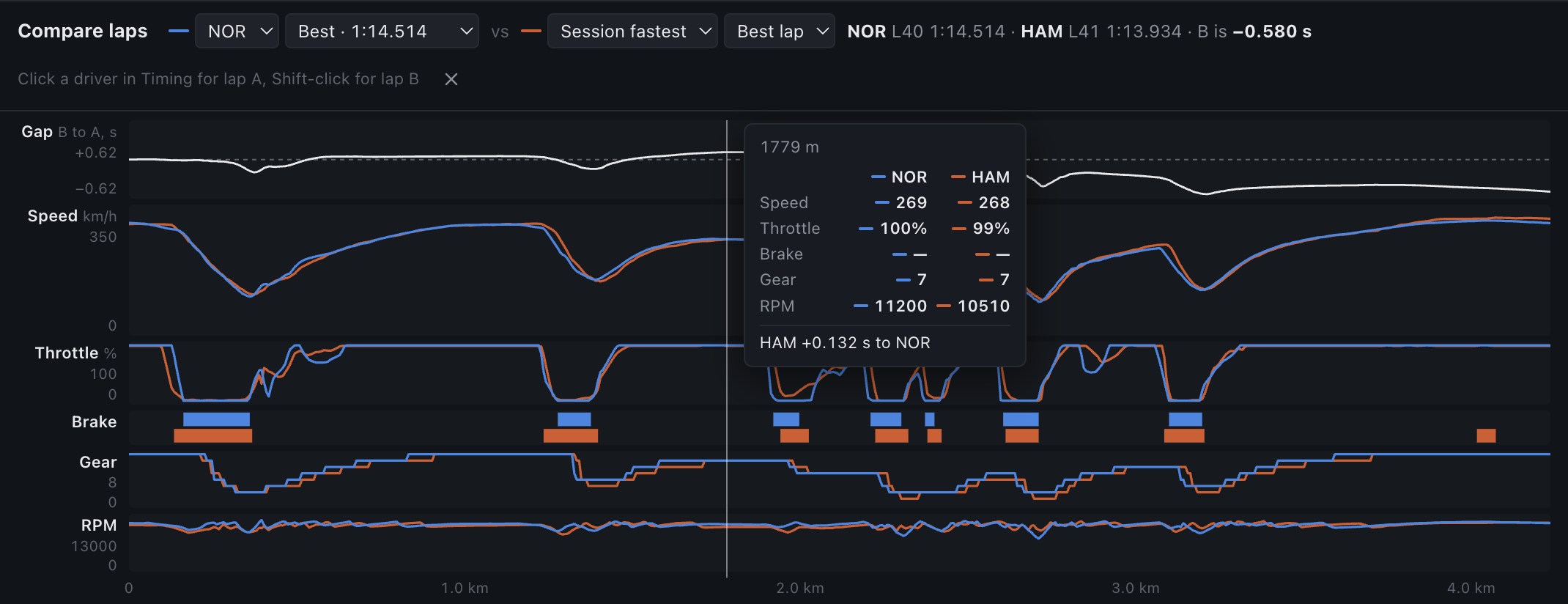
Put two laps on top of each other — a driver's best, any lap you pick, or the fastest of the session so far — and see speed, throttle, brake, gear and RPM along the lap, with the gap between them, so you see exactly in which corners one gains or loses time. Hover anywhere for both laps' values at that point.
In Timing, click a driver for lap A and Shift-click for lap B, or press C. Only laps you have already watched are offered. Telemetry comes from F1 Live Timing about four times a second, and the brake is on or off only, so the traces are a little coarser than on TV graphics.
Live lap, in step with the video
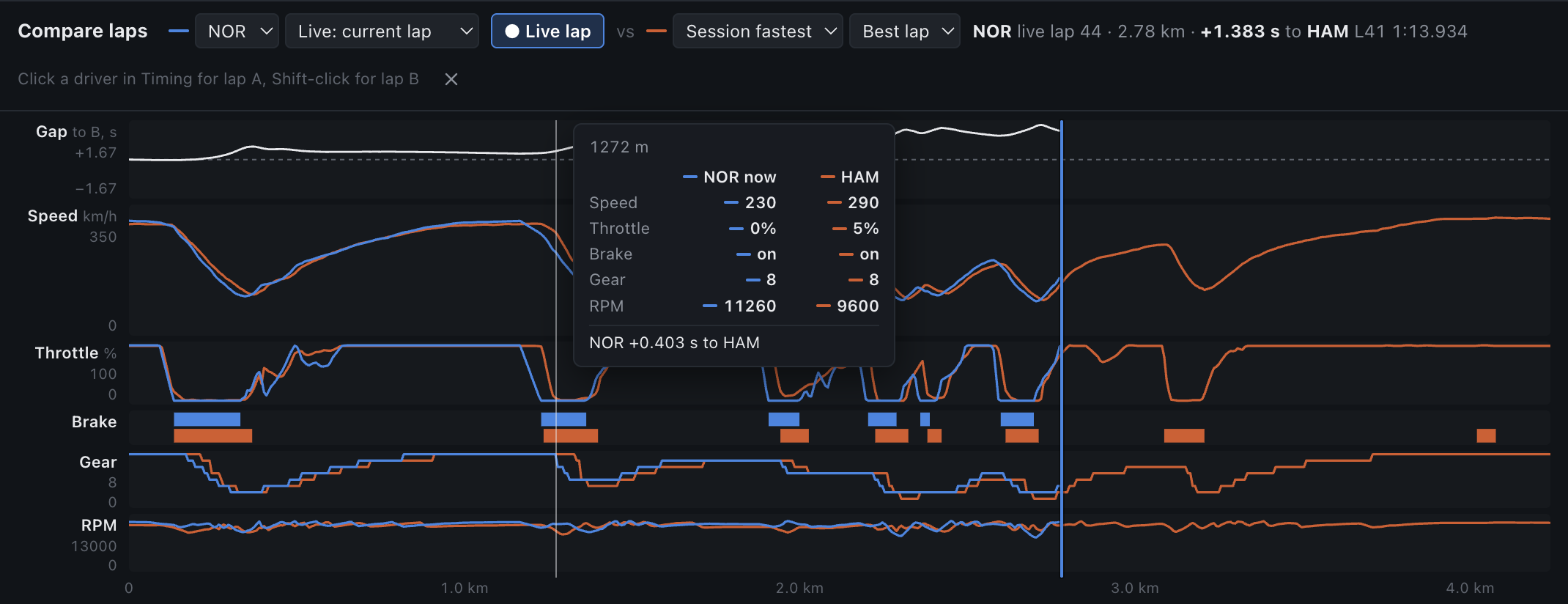
Press ● Live lap and the lap the driver is on right now is drawn as the video plays, up to where the car is, on top of a reference lap — their best or the fastest of the session — with the gap so far, like the delta on F1's own graphics: minus means faster.
Comparing two finished laps? Rewind to one of them and a line runs across the charts where the car is at that moment, so you can watch a braking zone on video and on the traces at once. Race replays and live sessions line up by themselves; for practice and qualifying replays, sync exactly once with Overlays → Go to start → Start is now.
Sign in with your browser
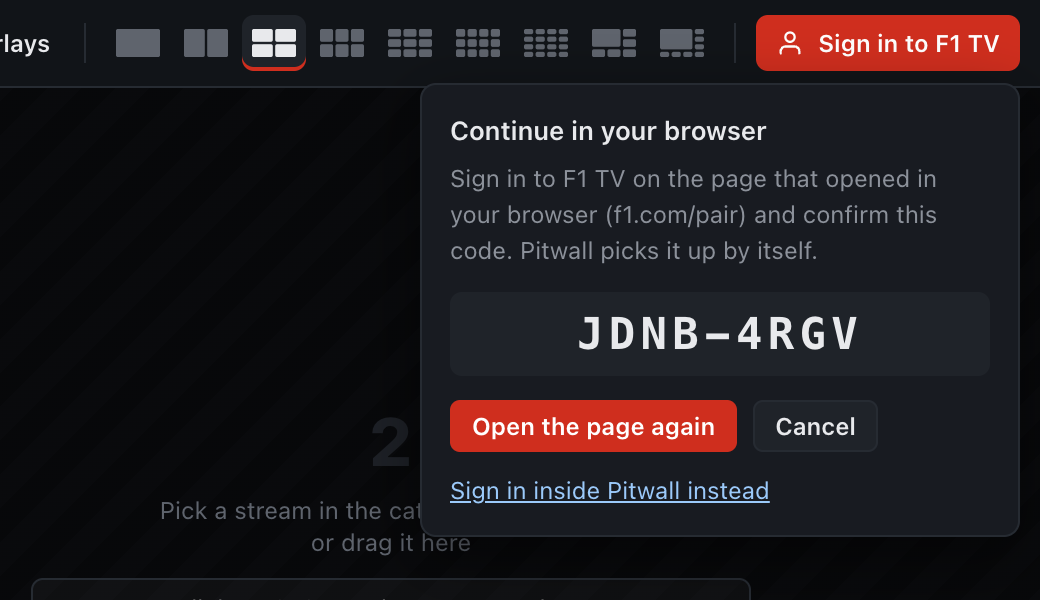
Pitwall shows a short code and opens F1's own pairing page in your browser, where your saved passwords already are. Confirm the code there and Pitwall picks up the session by itself — the same way the F1 TV apps for TVs sign in.
Pitwall never sees your password, and it keeps the session fresh in the background. If the pairing page doesn't work for you, you can still sign in on formula1.com inside Pitwall.
Updates itself

Pitwall checks for a new version every few hours (or when you choose Pitwall → Check for Updates…), downloads it in the background and checks it against our signature and checksum before it touches anything. When it's ready, a Restart to update button appears; if you'd rather not restart now, it installs when you quit. Keep Pitwall in Applications for this to work.
Keyboard shortcuts
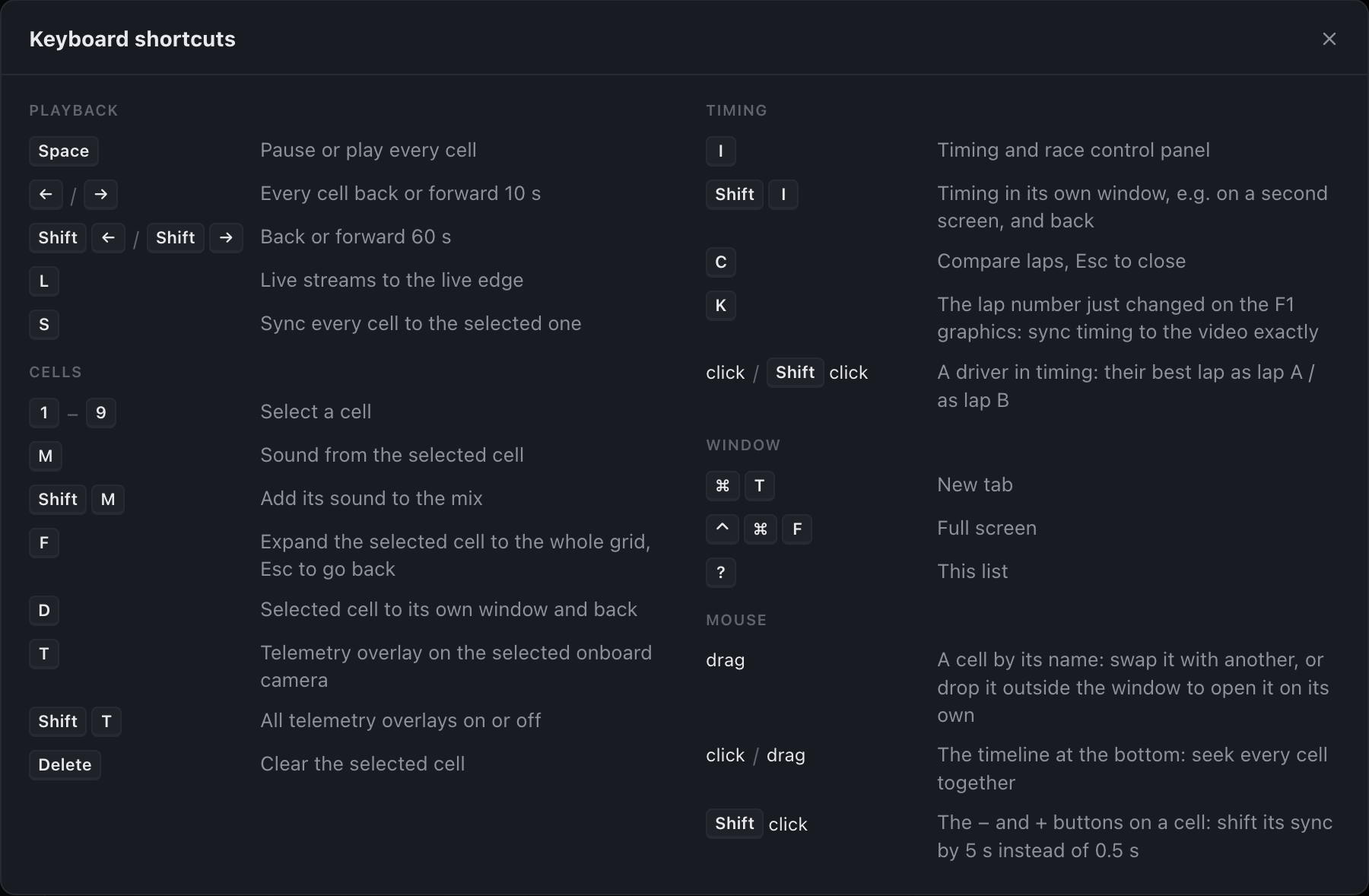
Almost everything in Pitwall has a key: Space pauses every cell, the arrows rewind them all together, number keys pick a cell, I opens timing and C compares laps. Press ?, click the keyboard button in the top bar or choose Help → Keyboard Shortcuts to see them all.
Install
- Open the downloaded
.dmgand drag Pitwall into Applications. - Open Pitwall. The first time, macOS says it could not verify the app — click Done. Pitwall is free and not registered with Apple, so macOS asks you to allow it once.
- Open System Settings → Privacy & Security, scroll down to “Pitwall was blocked”, click Open Anyway and confirm.
- From then on Pitwall opens like any other app, and keeps itself up to date: when a new version is ready, a Restart to update button appears (or it installs when you quit). For that, keep Pitwall in Applications.
Or, instead of steps 2–3, run this in Terminal once:
xattr -dr com.apple.quarantine /Applications/Pitwall.appNew versions appear on this page. Download the new .dmg and replace the app in Applications — your tabs, layouts and sign-in stay.
SHA-256 checksums
Pitwall-1.4.0-arm64.dmge9b1404f808469d05d9ccd09026c9e656bd47b4f374d88942022741a97ad7f86
Pitwall-1.4.0-x64.dmg6664b36128105ce7019f0cf6fd051fff098f411764202d50d1b34f1c376e7cf5